What Are Sources?
Sources are your inventory connections — the deals you’ve negotiated or discovered from Supply-Side Platforms (SSPs) like PubMatic, Magnite, or Sovrn. Each source represents a specific deal from a specific SSP, with its own pricing, format, and date range.
Sources are the foundation of the Bedrock workflow within a three-step process:
Sources → Streams → Campaigns.
Sources are the Supply step — you create them first, then package them into Audience Streams, then activate streams in Campaigns.
Location in the UI: Trading → Sources.
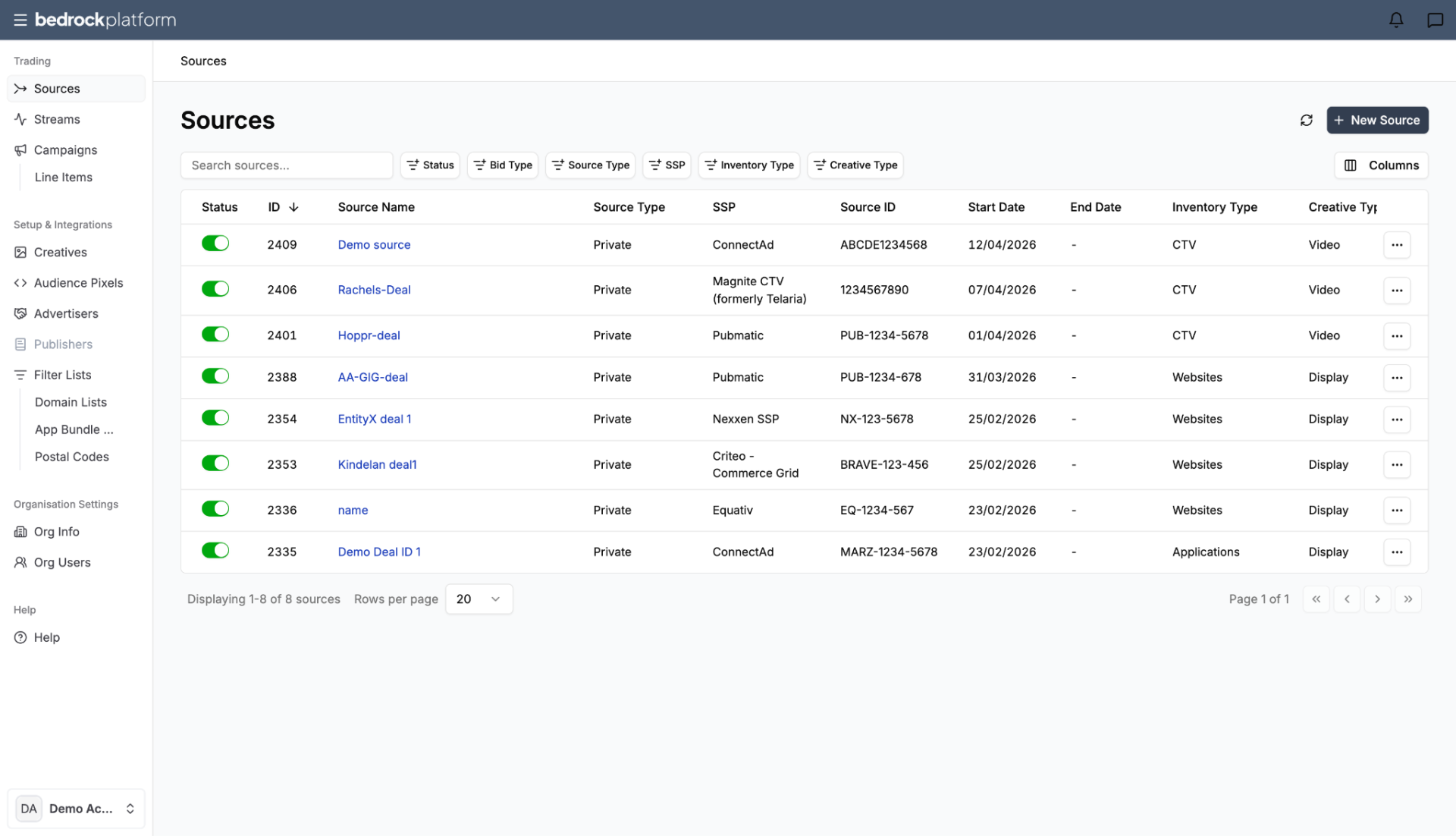
The Sources List
When you open Sources, you’ll see a table of all sources in your account:
| Column | Description |
|---|---|
| Status | On/off toggle — pause a source without deleting it |
| ID | Unique system identifier |
| Source Name | The name you assigned |
| Source Type | The type of deal (e.g., Private, Open Exchange) |
| SSP | The Supply-Side Platform for this source |
| Source ID | The external deal ID from the SSP |
| Start Date / End Date | When the deal is active |
| Inventory Type | Websites, Applications, CTV, or DOOH |
| Creative Type | Display, Video, or Audio |
| Bid Type | Dynamic or Fixed |
| Price | The floor CPM price |
You can customize which columns are visible using the Columns button. Click any source to see its full details.
Creating a New Source
Click New Source in the top-right corner. The workflow has two steps.
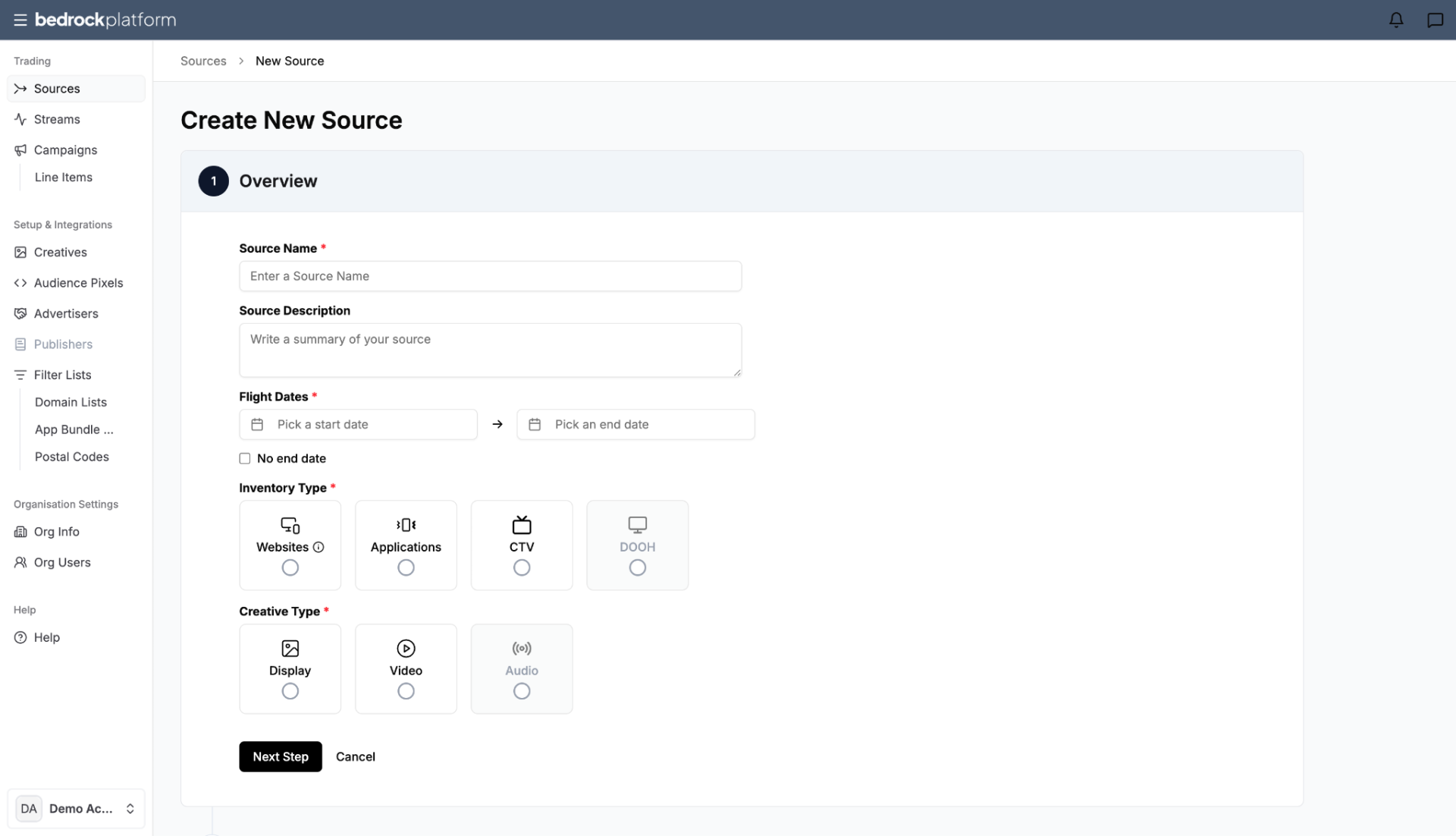
Step 1: Overview
- Source Name (required) — use a clear, descriptive naming convention. Good names include the SSP, format, audience, and date. Example: ANON | PUBMATIC | Finance Progressor | UK | 03092025 | M | 120. You’ll accumulate many sources over time, so searchability matters.
- Source Description (optional) — a summary of the source. Helpful for large teams or when copying details from the SSP.
Flight Dates:
- Start Date — the earliest possible start date is today
- End Date — must match the end date set in the SSP deal, or check “No end date” for evergreen deals that don’t expire
If the dates don’t match the SSP configuration, the deal may not deliver correctly.
Inventory Type and Creative Type:
Select the type of inventory this deal represents:
| Inventory Type | Description | Supported Creative Types |
|---|---|---|
| Websites | Standard web inventory (desktop + mobile web) | Display, Video |
| Applications | Mobile app inventory | Display, Video |
| CTV | Connected TV / streaming inventory | Video only |
| DOOH | Digital out-of-home (coming soon) | Display |
The creative type must match what the SSP configured for the deal. CTV automatically restricts to Video since it is not possible to run display ads in a CTV environment.
Click Next Step to proceed to supply configuration.
Step 2: Configure Supply
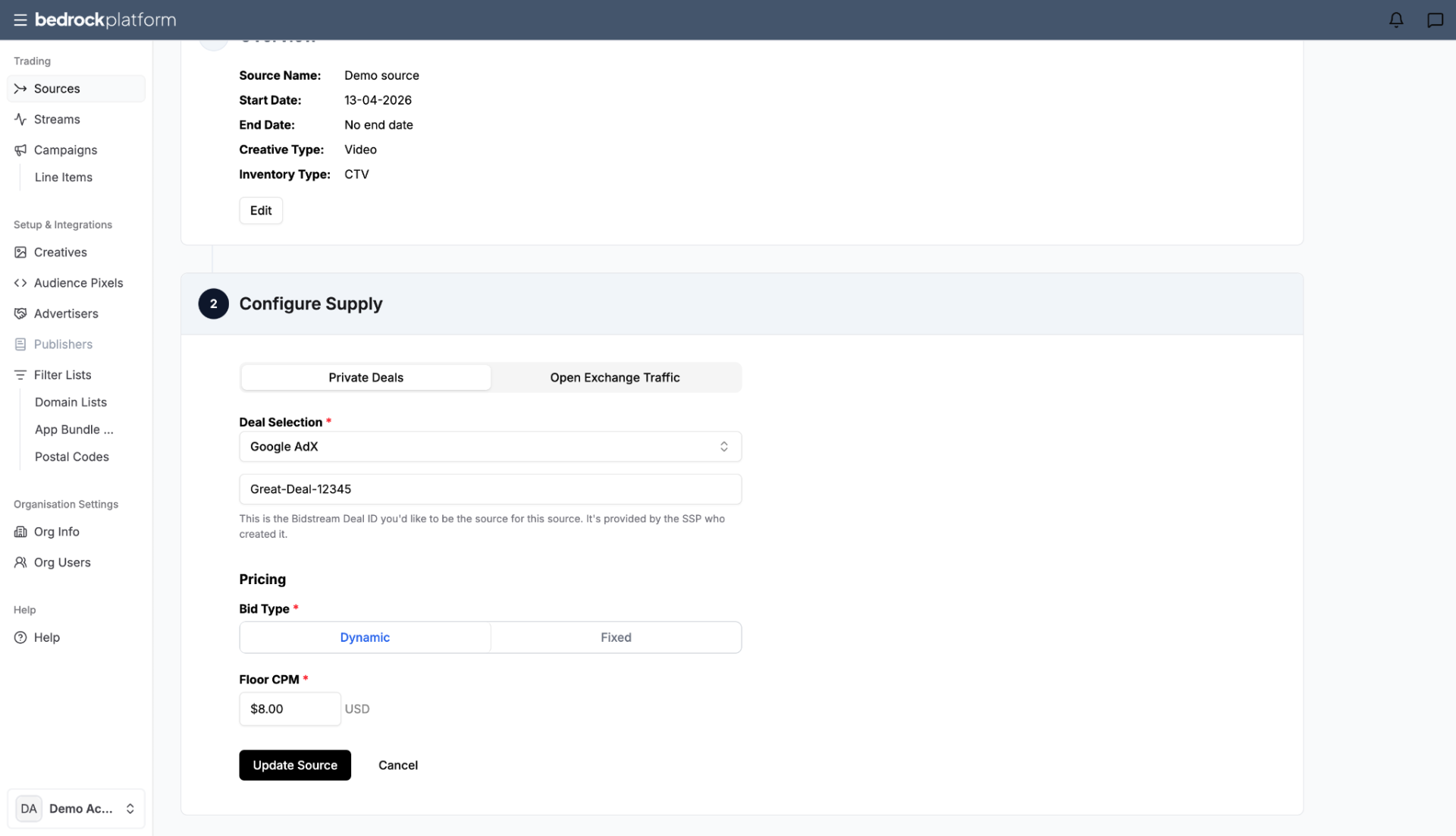
Choose how you’re buying inventory. The Configure Supply section has two tabs: Private Deals and Open Exchange Traffic.
Private Deals (recommended) — the preferred method for Bedrock. You’re activating a specific deal negotiated with the SSP.
- Deal Selection — Select SSP from the dropdown list. Available SSPs include ConnectedId, Criteo – Commerce Grid, Duration Media, Equativ, Google AdX, Index Exchange, Magnite CTV (formerly Telaria), and Magnite DV+ (formerly Rubicon). If your SSP isn’t listed, contact your account manager to have it added.
- Enter the Deal ID — copy and paste the exact deal ID from your SSP. This is the external deal ID provided by the SSP who created it. Accuracy is critical; a wrong character means the deal won’t match.
- Pricing — Select the Bid Type:
- Dynamic — the bidder experiments with prices around the floor to find an optimal CPM. Good for maximizing efficiency.
- Fixed — bids at exactly the price you set. Use when the deal requires a specific price.
- Set the Floor CPM — if using fixed bidding, the price must be equal to or higher than the floor price set in the SSP. If your price is lower, you won’t win any bids.
Open Exchange Traffic — buying from the open marketplace. Less targeted, lower priority than private deals. Uses key targeting filters rather than a specific deal ID.
Save
Click Create Source. The system saves the source and prompts you to create a stream — the next step in the workflow.
Key Rules
- The Deal ID must exactly match what’s in the SSP — copy and paste, don’t type manually
- Fixed bid Floor CPM must be equal to or higher than the SSP’s floor price
- Inventory type and creative type must match the SSP’s deal configuration
- End dates should match the SSP — mismatched dates cause delivery issues
- Use consistent naming conventions across your team
What’s Next?
After creating a source, you’ll package it into an Audience Stream — where you add audience data, targeting, and pricing logic. See Streams.