Getting Started
Forge accounts provide full access to the Bedrock Platform. When you log in, you’ll land on the Campaigns page. The full three-step workflow — Sources → Streams → Campaigns — is available from the left sidebar.
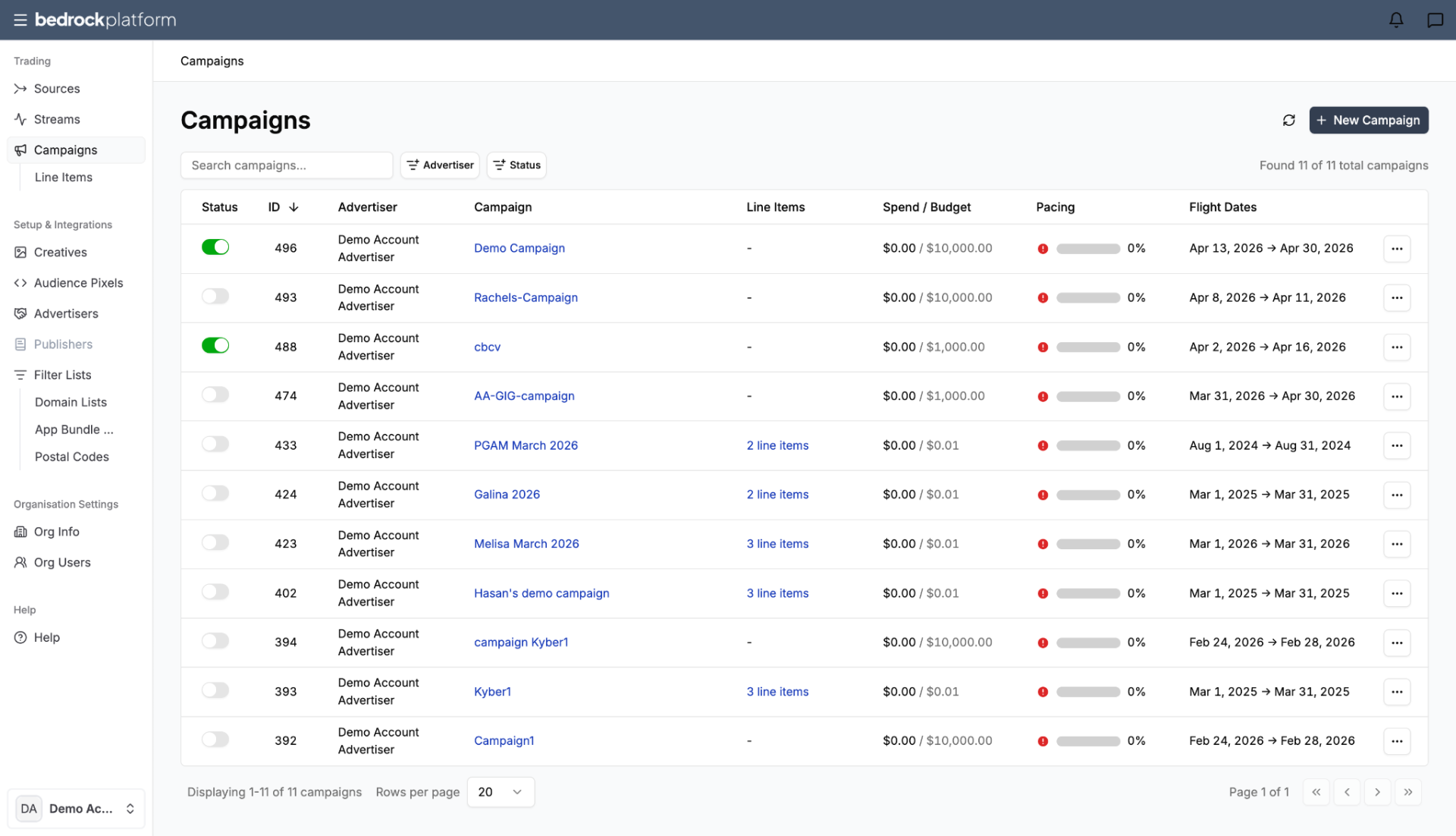
Navigation
The left sidebar organizes the platform into sections:
Trading
- Sources — your inventory connections (deals from SSPs).
- Streams — Audience Streams (curated packages of sources with targeting and data).
- Campaigns — your media buys.
- Line Items — execution details within campaigns.
Setup & Integrations
- Creatives — upload, manage, and preview ad assets.
- Audience Pixels — pixel-based audience tracking for conversion measurement and retargeting.
- Advertisers — manage client/brand profiles.
Filter Lists
- Domain Lists — include or exclude specific websites.
- App Bundles — target specific apps.
- Postal Codes — target specific geographic areas.
Organization Settings
- Org Info — organization details.
- Org Users — manage team members.
Help
- Help — documentation and support.
- Bedrock Agent – Pathfinder (BETA) — AI assistant visible in the top-right corner of the UI for recommendations and questions.
The Full Trading Workflow
1. Sources
Location: Trading → Sources
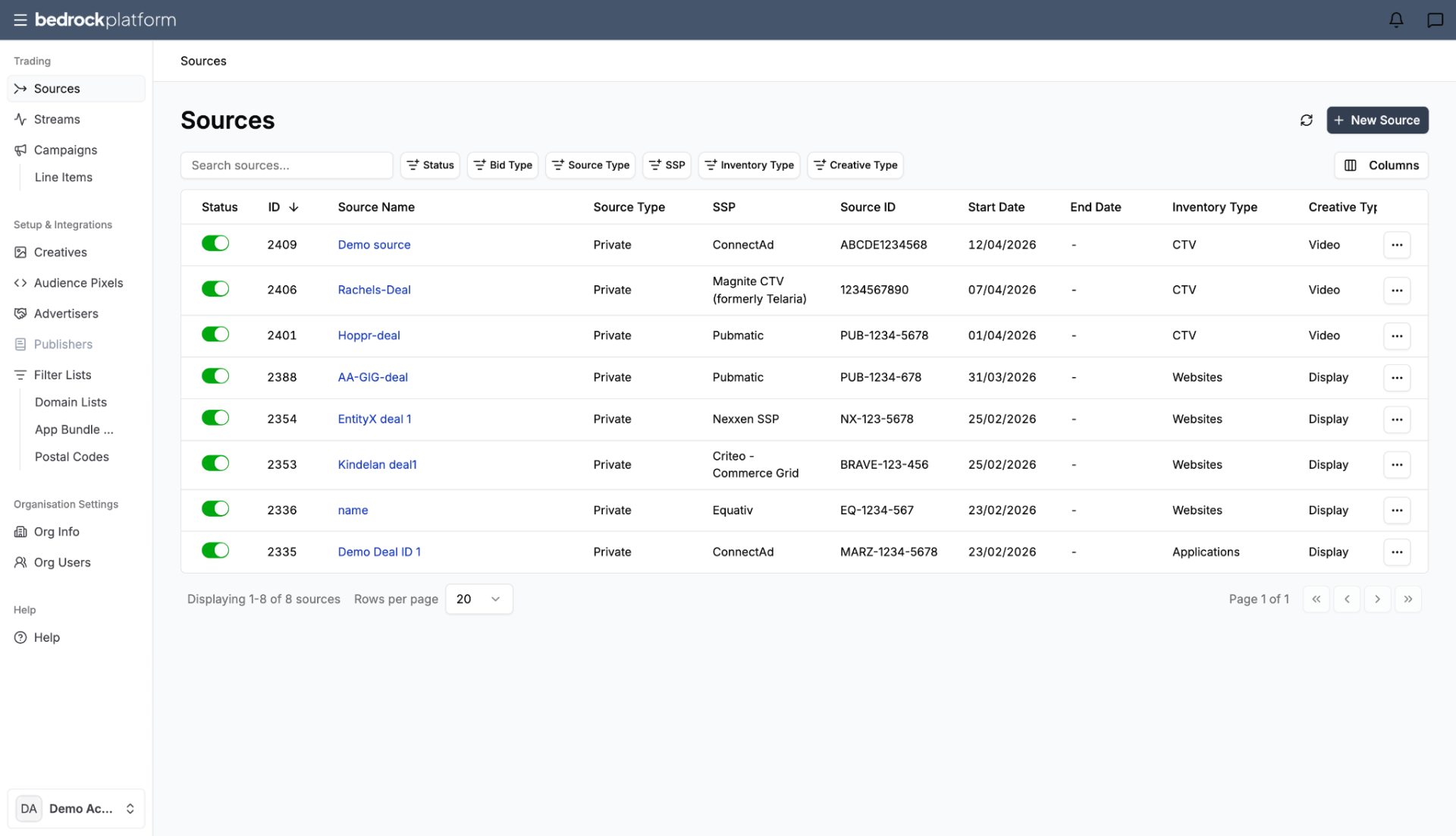
This is where you manage your inventory connections. The Sources table shows all your sources from SSPs, including status, dates, inventory type, creative type, bid type, price, and more.
- Click New Source to add a source.
- Each source needs: name, dates, inventory type, creative type, SSP, and deal ID.
- See Sources for the full guide.
2. Streams
Location: Trading → Streams (page header: Audience Streams)
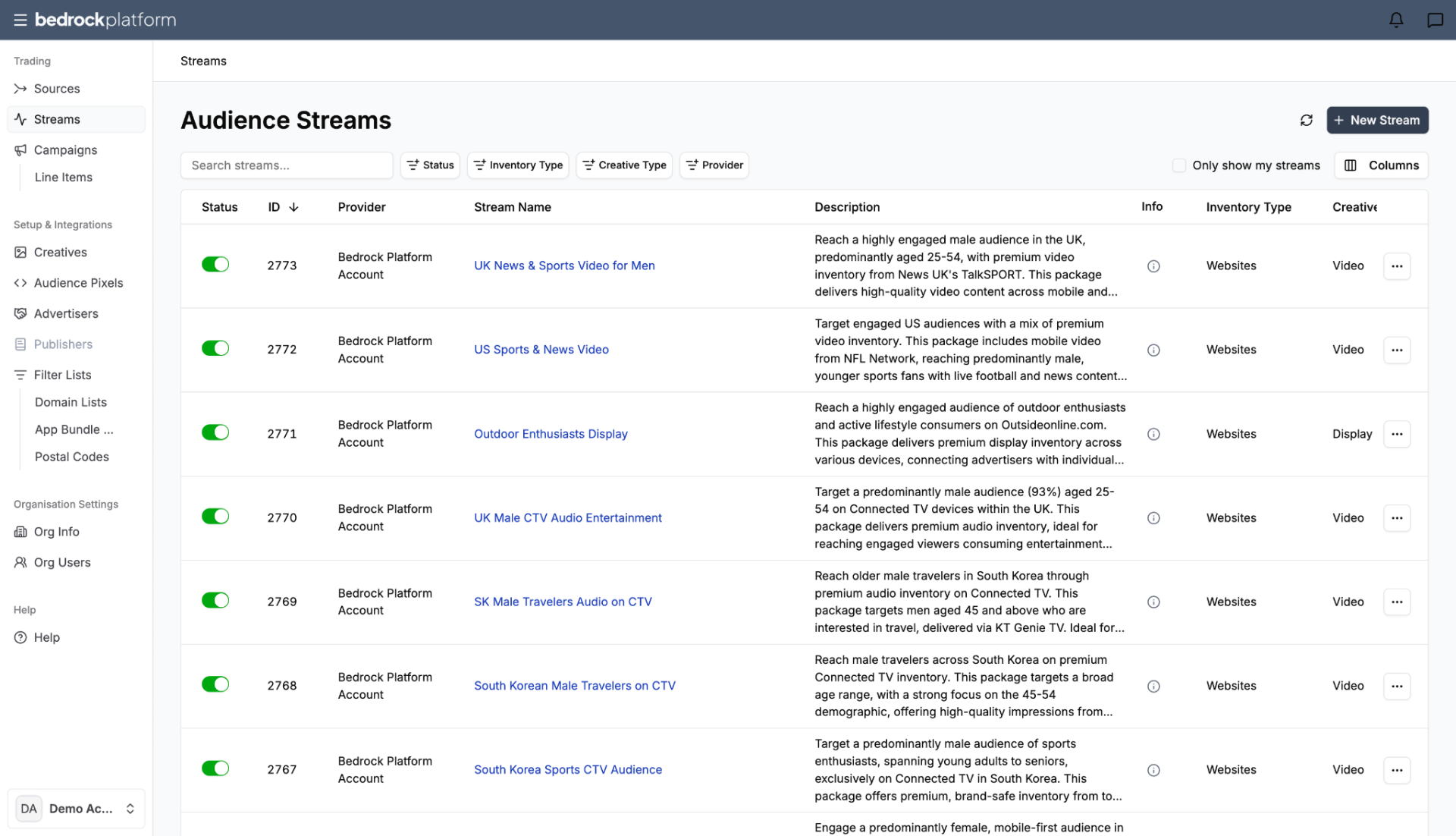
This is where you package sources into Audience Streams. The Audience Streams table shows all your streams with their sources, data fees, segments, and floor prices.
- Click New Stream to create a stream.
- Combine sources, add audience data, set targeting, configure pricing.
- See Streams for the full guide.
3. Campaigns
Location: Trading → Campaigns
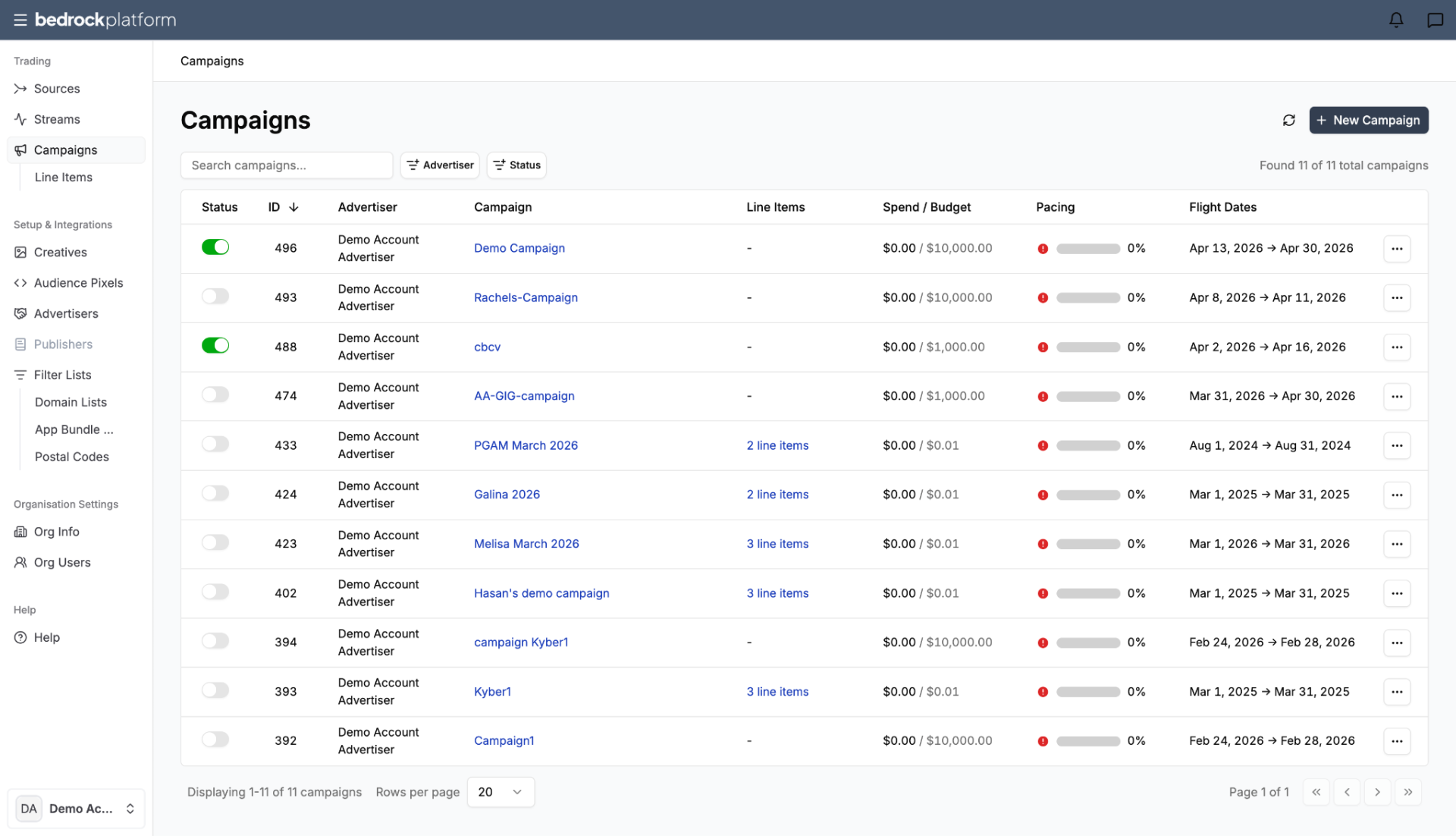
This is where you create campaigns and line items to activate your streams.
- Campaigns — set budget, dates, advertiser.
- Line Items — link to a stream, set bidding, frequency capping, creatives.
- See Campaigns for the full guide.
Setup & Integrations
Before trading, configure these foundational elements:
- Advertisers — create profiles for each brand/client (name, domain, contact).
- Creatives — upload ad assets. Supports display banners, video, third-party ad servers, macros, clickthrough URLs, and tracking pixels. Upload individually or via CSV.
- Audience Pixels — set up pixel-based audience tracking for conversion measurement and retargeting. Sync window up to 180 days.
Under Filter Lists, create domain lists, app bundle lists, and postal code lists for advanced targeting in streams.
Typical Forge Workflow
- Set up an Advertiser → Setup & Integrations → Advertisers
- Add Sources → Trading → Sources → New Source (add your SSP deals)
- Build a Stream → Trading → Streams → New Stream (package sources with data and targeting)
- Create a Campaign → Trading → Campaigns → New Campaign
- Add Line Items → link to your stream, set budget, bidding, and frequency
- Upload Creatives → Setup & Integrations → Creatives
- Activate and Monitor → watch pacing and performance