Overview
This guide covers advanced targeting and configuration options for Audience Streams, building on the basics covered in the Streams guide.
Filter Lists
Filter lists let you target or exclude specific inventory at a granular level. There are three types:
- Domain Lists
- App Bundle Lists
- Postal Code Lists
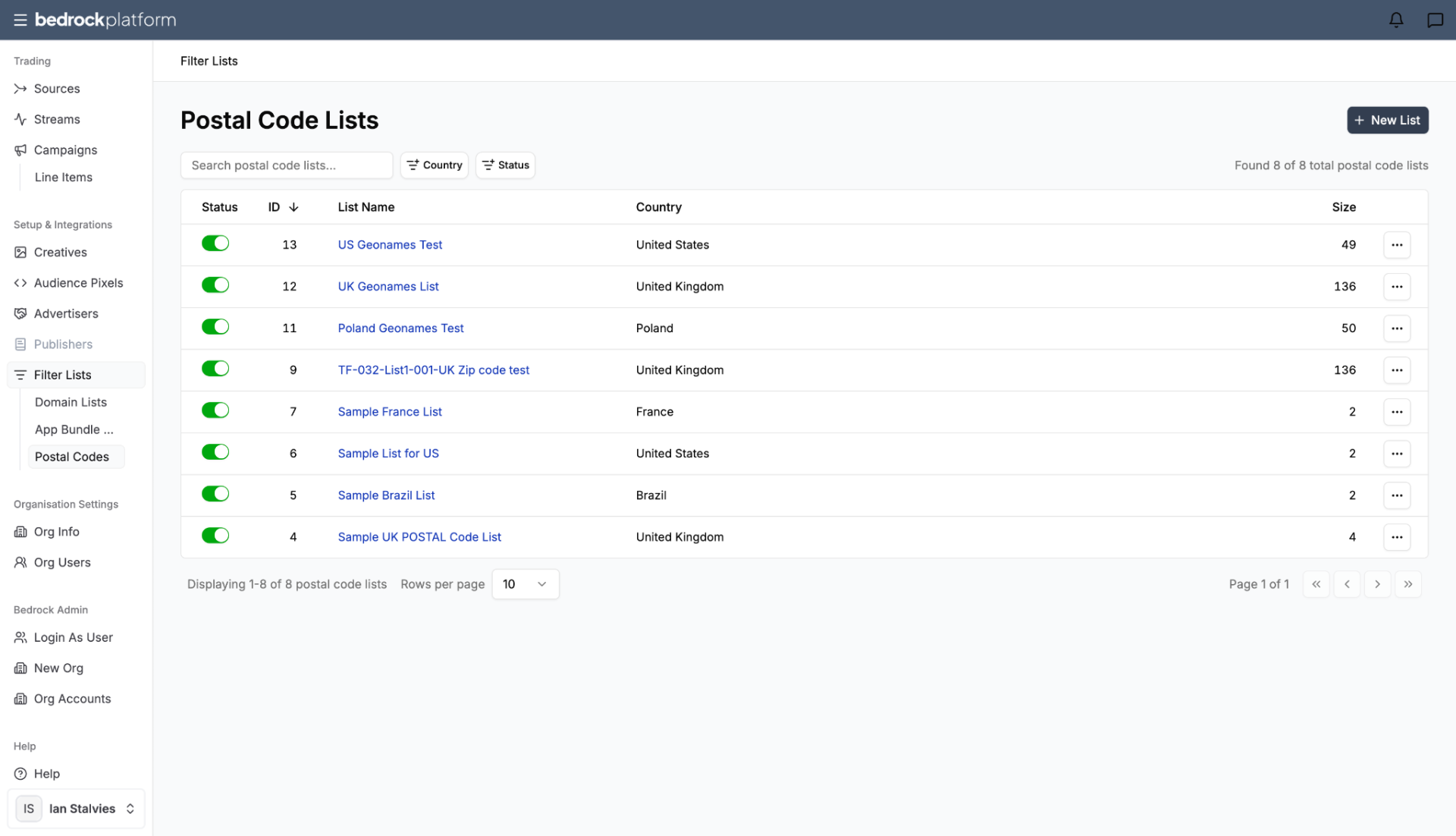
Postal Code Lists
Target users in specific postal/zip code areas. Useful for:
- Local business campaigns (target only the areas you serve)
- Geo-testing (run different creatives in different regions)
- Exclusion of low-performing areas
- Enabling different bid multipliers across postal code areas.
How to use:
- Create a list in Filter Lists (in the left sidebar)
- Upload a CSV of postal codes
- In your stream’s Targeting stage, select the postal code list
- Choose Include (only target these codes) or Exclude (avoid these codes)
Domain Lists
Target or exclude specific websites. Useful for:
- Whitelist campaigns (only run on approved publisher domains)
- Blacklist campaigns (avoid specific domains for brand safety)
- Publisher-specific testing
- Enabling different bid multipliers across various domains.
How to use:
- Create a list in Filter Lists (in the left sidebar)
- Add domains (one per line or via CSV)
- In your stream’s Targeting stage, select the domain list
- Choose Include or Exclude
App Bundle Lists
Target or exclude specific mobile apps. Same workflow as domain lists, but using app bundle IDs instead of domains.
Advanced Targeting
Beyond geographic and audience targeting, streams support more specific targeting:
Browser Targeting
Target users on specific browsers: Chrome, Safari, Firefox, Edge, etc. Useful when your creative or landing page has browser-specific requirements.
Device Type
Target by device category:
- Desktop — traditional computers
- Mobile — smartphones
- Tablet — tablet devices
- CTV — connected TV / streaming devices
Device Language
Target users whose device is set to a specific language.
Operating System
Target by OS: iOS, Android, Windows, macOS, etc. Useful for app-install campaigns or when your landing page is platform-specific.
Day and Time Scheduling (Advanced)
Beyond simple day selection, you can create complex schedules:
- Dayparting — run only during specific hours (e.g., 8 AM – 8 PM business hours)
- Day-of-week — different schedules for weekdays vs. weekends
- Combined — weekdays 9 AM – 5 PM only, or weekends noon – 8 PM
This is set in the stream’s Targeting stage under the schedule section.
Multi-Source Strategies
Combining Sources from Different SSPs
A single stream can include sources from multiple SSPs (e.g., Google Marketplace + BidSwitch + PubMatic). This creates cross-vendor reach — the buyer doesn’t need to think about which SSP serves the impression.
Pricing rule reminder: The stream’s floor price equals the highest floor price among all included sources.
Single-Source Streams
For precise control, create streams with just one source. This is useful when:
- You want to isolate performance by deal
- The deal has specific pricing requirements
- You’re testing a new SSP or publisher
Pricing Strategies
Margin for Value-Add
If you’ve invested time in sourcing inventory, onboarding data, and configuring targeting, add a margin to reflect that value:
- 10-15% — light curation (source selection + basic targeting)
- 20-30% — significant curation (data overlays + advanced targeting)
- 30%+ — premium curation (exclusive deals + custom audiences + verification)
Zero-Margin Streams
Set margin to 0% when:
- Running streams for your own campaigns (no resale)
- The pricing is already set by the underlying deals
- You want the floor price to equal the media + data cost exactly
Stream Distribution
Internal Streams
For your account only. Other Bedrock customers can’t see or use them.
Distributed Streams
Available to other Bedrock customers. The margin you set becomes the revenue you earn when other accounts use your stream. This is how Bedrock’s curation marketplace works — experienced curators build streams, and Foundry accounts can browse and activate them.