Overview
Creatives are the ad assets — display banners, video ads, native units — that get served when your campaign wins an impression. Bedrock provides a Creatives Library where you can upload, manage, preview, and track all your creative assets.
Location in the UI: Setup & Integrations → Creatives.
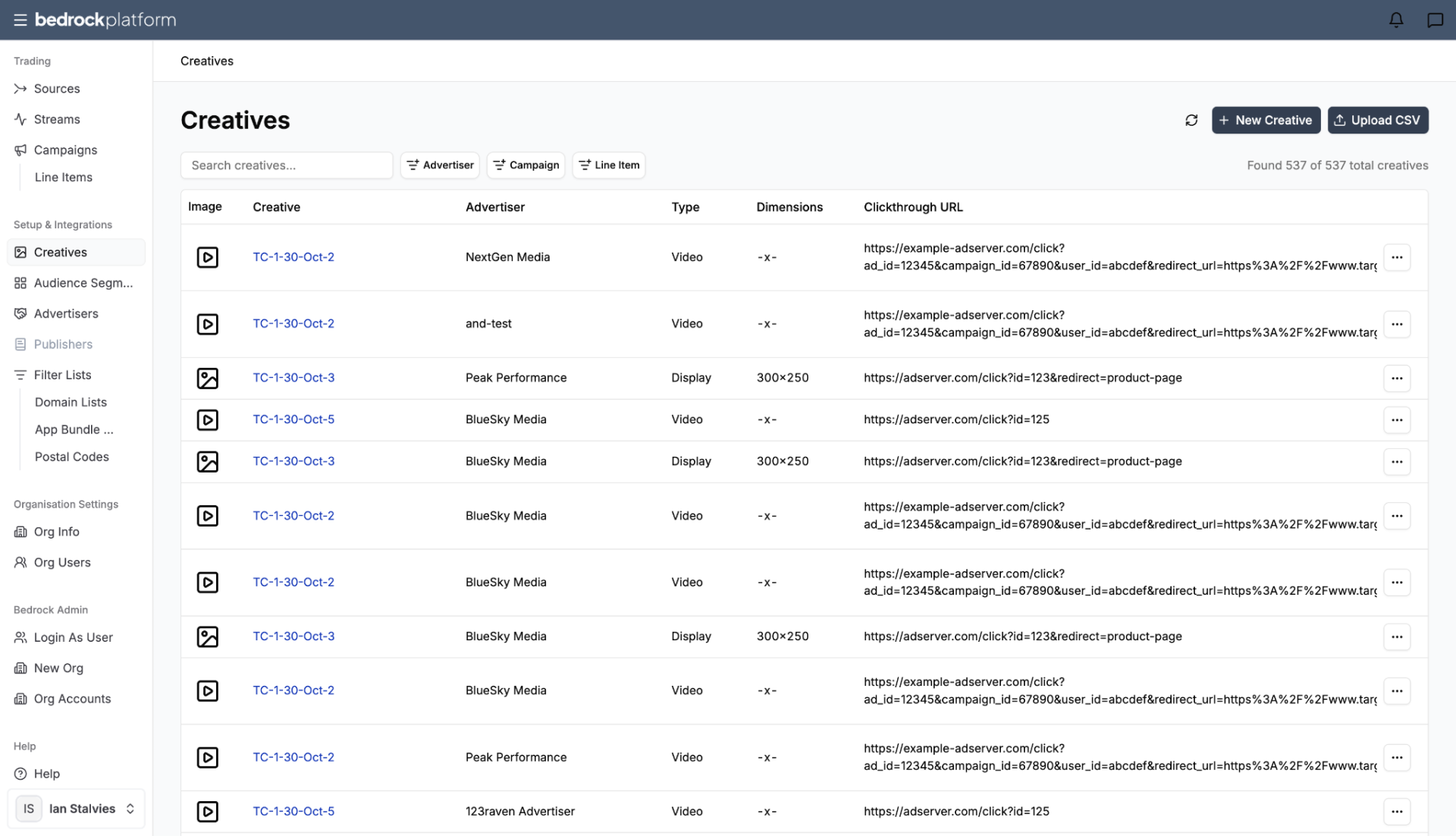
The Creatives Library
The creatives table shows all ads in your account:
| Column | Description |
|---|---|
| Image | Preview thumbnail |
| Creative Name | The name you assigned |
| Advertiser Name | Which advertiser this creative belongs to |
| Type | Banner (display), video, native |
| Dimensions | Ad size (e.g., 160×600, 300×250, 728×90) |
| Clickthrough URL | Where users go when they click |
Filter by Advertiser, Campaign, or Line Item to find specific creatives.
Creating a New Creative
Click New Creative in the top-right corner.
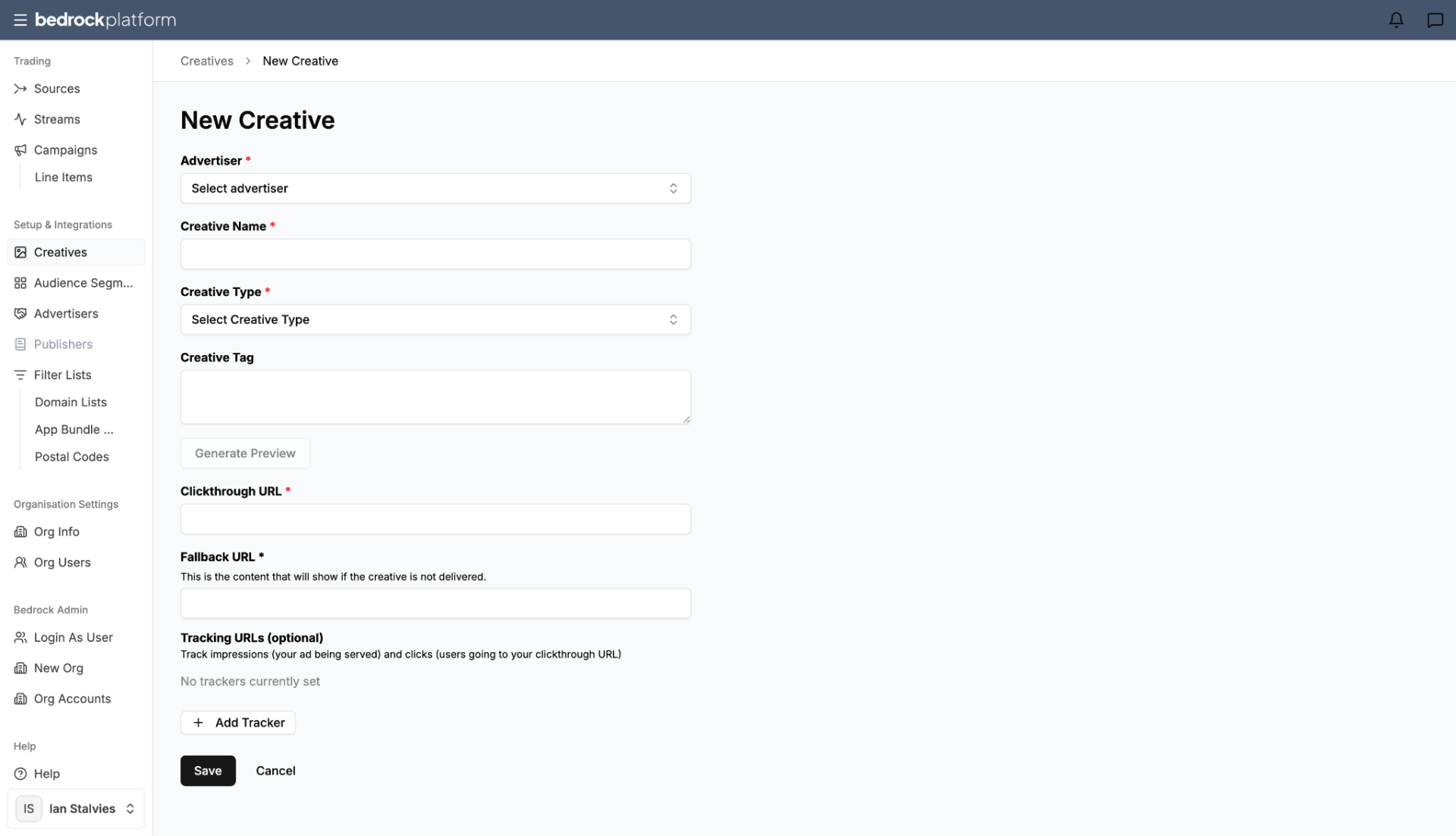
Required Fields
- Creative Name — descriptive name including advertiser, format, size, and campaign reference. Example: PetsPlayground_DogHarness_PMP_Display_UK_300x250
- Advertiser — select the advertiser this creative belongs to
- Creative Type — banner (display) or video
- Dimensions — the ad size (must match what the inventory supports)
- Clickthrough URL — the landing page URL users reach when they click the ad
- Creative Asset — upload the image or video file
Optional Fields
- Fallback URL — backup landing page if the primary URL fails
- Third-party ad server tag — if you serve creatives through an external ad server (DFP, Campaign Manager, etc.)
- Tracking pixels / macros — impression and click trackers from third-party measurement providers
Bulk Upload
Click Upload Creatives via CSV to upload multiple creatives at once. The CSV should include creative name, dimensions, clickthrough URL, and asset references.
Assigning Creatives to Line Items
Creatives are assigned at the line item level, not the campaign level. When creating or editing a line item, you’ll select which creatives to serve.
- Multiple creatives can be assigned to one line item (the system rotates between them)
- The creative dimensions must be compatible with the inventory in the stream
Best Practices
- Use clear naming conventions that include the advertiser, format, size, and campaign.
- Upload multiple sizes for the same ad to maximize inventory match (for example, 300×250, 728×90, 160×600 are the most common display sizes).
- Always test the clickthrough URL you set.
- Test creatives before activating at scale — consider running a small budget line item first.
- If you are using ad server tags for the first time please notify your account manager to ensure macros work.
- For ad serving support (using ad serving supplied via Bedrock Platform) please raise with your account manager.
- Please note creatives need to be approved by SSPs before campaigns go live. This can lead to unexpected delays; please factor in your campaign planning.